Skip to content

Free party DPS meter for AION 2

RiftMeter

It reads your fights, keeps your week in order and keeps everything on your PC. RiftMeter comes in RiftConsole, the free Windows app that installs and starts it.

Unofficial: not made, approved or supported by NCSOFT. Used by several players since launch, with no issues so far. Still, use it at your own risk, and read what it reads and what it never does first.

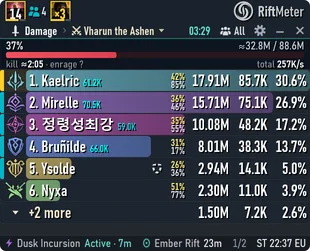
The RiftMeter damage window: a boss bar, six party members in class colours with their damage, damage per second and share, and the event line
Pictures on this page: RiftMeter drawing invented fights (made-up names and skills).

Get RiftMeter

The file is the RiftConsole installer: it installs RiftConsole and RiftMeter, which RiftConsole starts.

  • Version 0.1.16
  • Windows 10/11, 64-bit
  • about 73 MiB
Coming soon

The RiftConsole installer is not published yet. The button opens here as soon as it is.

SHA-256 of the installer, to check your download:decc56339c11c67111f390c0da1924282f76632e448587154a1d9f1fe3d60c8c

Not code-signed yet: Windows SmartScreen may warn, and Smart App Control on Windows 11 may block it (error 4551). The FAQ says what to do.

Requirements

  • Windows 10 or 11, 64-bit. Built and tested on Windows 11; Windows 10 is not tested yet.
  • AION 2 for PC, the EU client (Steam or PURPLE).
  • Administrator rights: AION 2 runs as administrator, so RiftConsole and RiftMeter ask Windows for them at each start.
  • About 73 MiB to download; allow up to about 1.5 GB of disk for local recordings and data.

RiftMeter

The party DPS meter

RiftMeter is a separate, read-only program that RiftConsole starts. It sits over the game in small dark windows, coloured by class, with every detail one click deeper.

Exact mode

On by default

RiftMeter counts the hits of everyone in range from the game's own network data, which it only receives. When that is not available, the combat log read from the game's memory takes over.

  • Every player in range, not only you.
  • Receive-only: nothing is ever sent to the game.
  • Adds one Windows Firewall rule, removed when you turn Exact mode off.
  • On some crowded world bosses the server does not send other players' hits, and the meter says so.

Where the numbers come from

  • First: the game's network data, received only (Exact mode).
  • Fallback: the combat log, read from the game's memory.
One window, every detail one click deeper

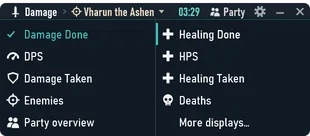
Damage, DPS, healing, damage taken and deaths in one window that opens on the current fight and all players. Pick another display from its title, or open up to 5 windows.

  • Combat Power beside each name, in the game's cyan.
  • A boss bar with a kill-time estimate and the enrage timer.
  • Your class's passive buffs on the side line: detach them into their own window, keep them open or hide them during fights.
The damage window beside its display menu: Damage Done, DPS, Damage Taken, Enemies, Party overview, Healing Done, HPS, Healing Taken and Deaths

Hover any row

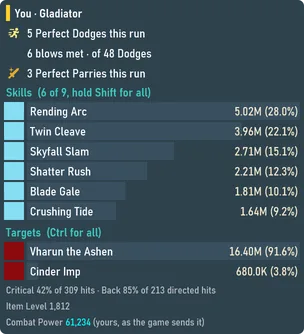
A player's skills, targets, perfect dodges, Item Level and Combat Power in a tooltip, without leaving the fight.

The damage window with a player's tooltip: perfect dodges and parries, skills with their damage, targets, critical and back-attack rates, item level and combat power

The player breakdown

Open a player for the whole story: Summary, Damage taken, Deaths, Compare, Timeline and Effects, for each fight segment.

  • Every skill with its total, share, critical rate, hits and average.
  • What raised or held back the damage: crits, buffs, parries, time lost.
  • Targets, damage per second over time, and the target's defence.
The player breakdown on its Summary tab: players and fight segments on the left, skills, targets and a damage-per-second graph in the middle, one skill's normal and critical hits on the right

Hidden Cube alerts

A red or yellow cube near you shows on the meter's side line with its distance, height and direction. An optional sound tells you when one appears, and a card shows which spots were already checked empty.

The meter's side line with a red and a yellow cube and their distances, beside two cards: which cube, how far ahead, above or below, and since when

Events and alerts

The event line under the meter counts down to the Shugo Festival, Dimensional Invasion and Field Boss timers. A banner and a soft sound tell you when an event is near or its entry opens.

The event list with start times and countdowns, beside three alert banners: an event in 10 minutes, an entry open, an invasion's entry open

Daily and weekly checklist

Pause

Odyle Energy with every refill source and what you can still get this week, your attempts and keys for today and this week, and your season ranks.

  • Refill sources: the bag, storages, the shop, Substance Morph, the Daeva Pass and missions.
  • A quiet note 2 hours before a reset would waste something.
The checklist: energy at the top, then attempts, today's and this week's tasks, and season ranks
The energy card: basic and charged energy, the recharge time, and each refill source with what it can still add this week

Pet radar

Ctrl+F11

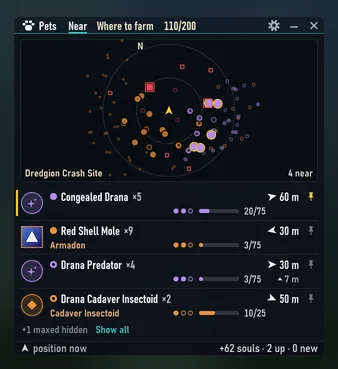
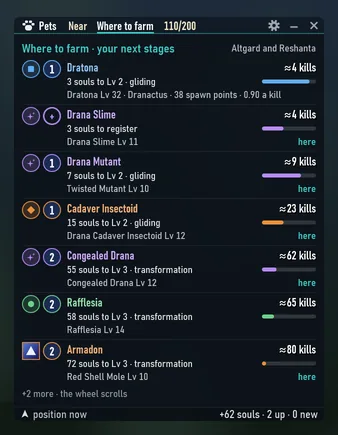
Your soul collection at a glance (like 110/200), a heading-up mini-map of the soul monsters near you, and where to farm your next stages.

The pet radar's Near view: a mini-map with the monsters around you, and the species near you with their distance and progress
The pet radar's Where to farm view: the next stages with the souls they need and about how many kills

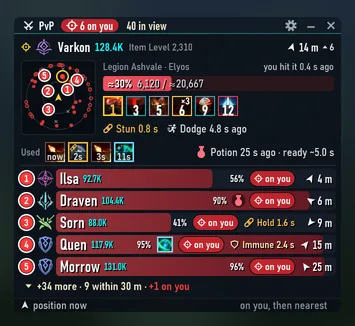
PvP window

Scroll Lock

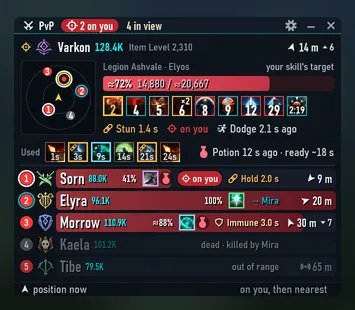
The enemy players near you. It follows your target, else whoever is on you, else the nearest, in the order you pick.

  • Health, effects with their time left, the skills and potions they used, and when their next potion is ready.
  • Five compact rows and a dot radar, also in a crowd.
The PvP window with four enemies: the followed player's health, effects and used skills, a dot radar and four rows
The PvP window in a crowd of 40 players: five rows and the dot radar full of enemies

And also

  • Made for streaming

    Each meter window is a window of its own, so your streaming app's window capture lists them one by one (RiftMeter · Damage, RiftMeter · PvP …). An optional stream overlay shows them all at once.

  • Mask names

    Options › Privacy › Mask names hides other players' names on screen.

  • English and Korean for now

    RiftMeter's own text is in English and Korean for now; more languages are coming soon. This page is translated already.

  • Ping boosters

    It works through a ping booster on your PC when the booster passes the game's own traffic on unchanged; otherwise it tells you.

RiftConsole

The console

RiftConsole is the window you open. It finds AION 2 by itself (Steam or PURPLE), starts RiftMeter and keeps a few game settings at hand.

  • Meter page

    Start, stop and set up the meter.

  • Runs

    Your instance runs with each boss's DPS and the game's own score, kept on your PC. Nothing is uploaded.

  • Camera

    Game-memory writes, off by default

    Set the field of view from 60 to 120 degrees. Experimental.

  • Live settings

    Ctrl+Shift+0

    Game-memory writes, off by default

    Switch the game's Mass Combat Quality (Mass PvP) on and off while you play. Experimental.

  • Saved settings

    Graphics presets (quality, crowd, Mass PvP or your own), written to the game's settings file with a backup, only while the game is closed.

  • Updates from aion2.gg

    Once aion2.gg publishes updates, RiftConsole checks there for a new version and installs it in one click. Never on its own, and not offered while AION 2 runs.

What it reads and what it never does

RiftMeter and RiftConsole are unofficial: they are not made, approved or supported by NCSOFT, and NCSOFT has not approved external memory access or any meter.

Used by several players since launch, with no issues so far. That is a track record, not a guarantee.

How the game's anti-cheat reacts to it has not been measured. Use it at your own risk.

What it reads

  • The meter reads the game's memory, read-only.
  • Exact mode reads the game's network traffic, receive-only, through its helper RiftMeterTap.

What it never does

  • Nothing is sent to the game.
  • No injection, no hooks, no driver.
  • Nothing extra to install: it uses what Windows already has.

Only when you turn it on

  • Camera and Live settings write the game's memory only after you turn on Game-memory writes. The switch is off by default, states the risk, and these features are experimental.
  • Saved settings change the game's settings file only while the game is closed, and keep a backup.

What Windows will ask

  • Administrator rights at each start, because AION 2 runs as administrator.
  • Exact mode adds one inbound Windows Firewall rule, “RiftConsole meter tap”, and removes it when you turn Exact mode off.
  • Not code-signed yet: SmartScreen may warn, and Smart App Control may block it (error 4551).

Your data stays on your PC

  • Everything stays on your PC. Fight recordings are kept locally (up to 1 GB) and include other players' names.
  • Its only connections are the update check to aion2.gg and the download from UploadThing.
  • Keep what it shows about other players to yourself.

Install and uninstall

The setup asks for administrator rights once; RiftConsole asks again at each start (see Requirements). The setup installs no service, driver, startup task or firewall rule.

Install

  1. Run RiftConsole-0.1.16-win64-setup.exe and confirm the folder, C:\Program Files\RiftConsole. A desktop shortcut is optional.
  2. Approve the one administrator prompt. The setup checks the package before it copies anything.
  3. Answer Yes to “Export the game data now?” and “Start RiftConsole now?”. RiftConsole finds AION 2 by itself.
  4. Open the Meter tab and start the meter. Exact mode is on; you can turn it off there while the meter is stopped.

Uninstall

  1. Open Windows Settings › Apps, find RiftConsole and choose Uninstall.
  2. It removes the program, its shortcuts and Exact mode's firewall rule.
  3. Your settings, fight history and recordings stay unless you answer Yes to “Also remove your settings, fight history and captures?”.

Questions

Is RiftMeter free?

Yes. RiftMeter and RiftConsole cost nothing and need no account.

Can I get banned for using it?

Nobody can promise it is safe. RiftMeter and RiftConsole are not approved by NCSOFT, and how the anti-cheat reacts has not been measured. The meter only reads, and Camera and Live settings only write after you turn writes on, but that does not make them approved. Use them at your own risk.

How accurate is the meter?

In Exact mode it counts every hit the game's network data carries for the players in range. On some crowded world bosses the server does not send other players' hits, and the meter says so.

Windows blocks the installer. What can I do?

RiftConsole is not code-signed yet. SmartScreen may show a warning first. If Windows 11's Smart App Control blocks it (error 4551), the only way is to turn Smart App Control off in Windows Security › App & browser control › Smart App Control settings. On some Windows versions it cannot be turned back on without resetting Windows, so decide with care. On a work PC, ask its IT.

Does it work with another region's client?

It is made for the EU client (Steam or PURPLE). On another region's client, such as Taiwan's, it counts, but some names from the game's tables may be missing.

Does it send my data anywhere?

No. Recordings, fight history and runs stay on your PC. Its only connections are the update check to aion2.gg and the download of the installer.

How does it update?

Once aion2.gg publishes updates, RiftConsole checks there for a new version. Installing it takes one click, is never automatic and is not offered while AION 2 runs.

Is the app in my language?

Not yet: RiftMeter's own text is in English and Korean for now; more languages are coming soon.